Online booking for ADIs

A Driving Instructor Booking System That Only Offers Times You're Free

Pupils book their own driving lessons online, from a button on your website or from their app, at ten at night or while you're teaching. Every booking is checked against your diary, your rules and the car before it lands, with the pupil's details already attached.

Web, iPhone and Android · Free until 31 March 2027 · No card needed

Why instructors move bookings online

Booking by phone and message works until it doesn't. Enquiries arrive while you are on a lesson and can't answer, a pupil asks "any slots next week?" and you scroll back through the diary at a set of traffic lights, and the new learner who messaged at nine at night has booked with whoever replied first. None of that is teaching, and most of it happens in your evenings.

A booking system takes the back-and-forth out. The pupil sees what is free and picks it. You find out when the lesson is already in the diary, with the right pick-up address, rather than when you get round to the messages.

The worry most instructors have is losing control: pupils booking at silly times, the day after a long motorway lesson, or straight after a lesson on the other side of town. That is why the rules matter more than the booking button, and why they come first below.

Two ways for pupils to book

From your own website

Paste a short snippet into your website and a booking button appears. It opens a booking window on your page, so the visitor never leaves your site. They pick a lesson type, an instructor or "any available", a day and a time, and leave their name, email, phone number and pick-up address. There is no account to create and no password to forget. You choose the button's wording, colour and which corner it sits in.

From the pupil app

Pupils you have invited sign in to the DriveSchoolPro app on iPhone, Android or the web. They see their own lessons, progress and invoices, and book the next lesson from the same screen, using prepaid lesson hours where you allow it. Read more aboutthe pupil app.

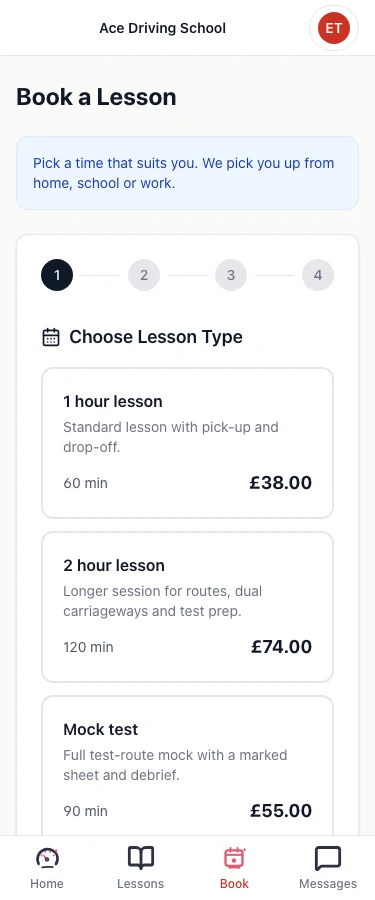
A pupil's booking screen on a phone at step one, Choose Lesson Type: a one hour lesson, a two hour lesson and a mock test, each with its price.

The rules that keep online booking safe

The slots a pupil sees come straight from your working hours and your diary. On top of that, you set the rules once and they apply to every online booking:

  • Slot length. Start times every 15, 30 or 60 minutes.
  • Travel buffer. Up to two hours kept clear after each lesson.
  • How far ahead. Anywhere from 1 to 365 days.
  • Same-day booking. On or off.
  • Pupil limit. How many upcoming bookings one pupil can hold at once.
  • Cancellation notice. One hour up to 72 hours, with separate switches for cancelling and rescheduling online.

Every online booking is then checked against the pupil, the instructor and the car, exactly like a lesson you add yourself, so it cannot double-book anyone or anything.

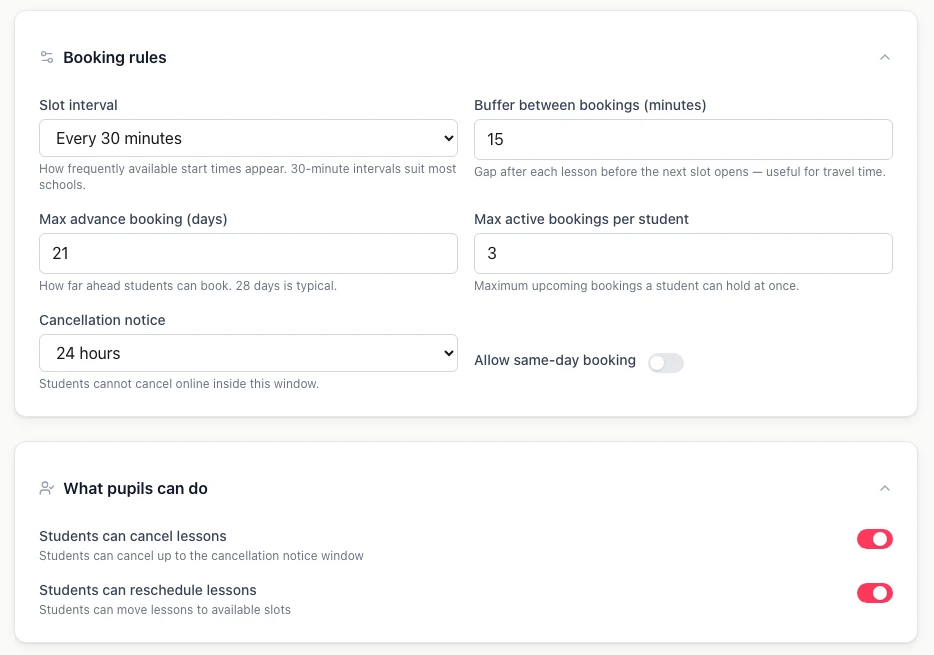
The Booking rules and What pupils can do settings: slot interval, travel buffer, maximum advance booking, active bookings per pupil, cancellation notice, same-day booking and switches for cancelling and rescheduling.

Payment at booking, or prepaid lessons

Connect your own Stripe account and you can ask pupils to pay by card when they book. The money goes to your Stripe account. Pupils who have bought a block of lessons can use those prepaid hours instead, so a pupil with ten hours left is not asked to pay again.

DriveSchoolPro charges 3% on card payments you collect, and Stripe's standard processing fee applies on top. If you would rather keep taking cash or bank transfer, leave payment at booking off: bookings are confirmed without payment, and you record what the pupil pays against their balance. See getting paidand lesson packages.

Booking system vs a general booking link vs messages

What each option does for a working driving instructor. A general booking link means an all-purpose appointment tool; messages means taking bookings by phone, text or WhatsApp.

JobDriveSchoolProGeneral booking linkPhone and messages
Pupils book at any hour without messaging you
Only offers times you are actually freeFrom your working hours and diaryIf you keep its calendar up to date
Checks the pupil, the instructor and the carYour own calendar only
Travel buffer between lessonsUp to two hoursUsually
Booking lands next to the pupil’s record and progress
Card payment or prepaid lessons at bookingCard, if connected
Pupil app with their lessons, progress and balanceiPhone, Android and web
DVSA 27-skill progress per pupil
Approve each booking before it is confirmedSome tools

What to check before choosing driving instructor booking software

Whatever you choose, test these on a trial with a few real pupils before you put the button on your website.

  1. Does it read your real diary? If lessons you add yourself don't block the slot, a pupil will book over them.
  2. Can you protect travel time? Door-to-door lessons need a gap after each one, and it should be set once, not remembered.
  3. Does it check the car? In a school with shared cars, a booking that only checks the instructor can still put two lessons in one vehicle.
  4. Who controls cancellations? Look for a notice period that stops late online cancellations and sends the pupil back to you.
  5. Where does the booking end up? The best place is next to the pupil's record, payments and progress, not in a separate calendar you copy from.
  6. What does it do about payment? Card at booking, prepaid lessons, or neither: check it matches how you are paid today.
  7. Is it built for UK driving lessons? General booking tools take appointments well but don't know about pick-up addresses or the DVSA's 27 driving skills.

Let the next pupil book while you're teaching

Set your hours and rules, then switch online booking on when you're ready. Free until 31 March 2027, no card needed.

Get started free →

Booking for a driving school with several instructors

In a school, pupils can pick an instructor or choose "any available", and the system offers the times when an instructor is free. Because every booking is checked against the car as well as the instructor, two instructors sharing a vehicle can't both be booked into it.

Each instructor sees their own diary on their phone, and the office sees everyone's. For the wider picture of running several diaries, see our guide todriving school scheduling software.

What DriveSchoolPro's booking won't do

It is better to know the edges before you rely on it. Online bookings are confirmed straight away, so there is no approve-first step. Pupils don't choose the car; you do. There is no booking by text message. Lesson reminders go out by email today, and WhatsApp is coming soon. Repeating weekly bookings are coming soon too, so each lesson is booked on its own for now. If any of these matters to how you work, that is worth knowing now rather than after you've switched.

How to set it up

  1. 1

    Set your hours and lesson types

    Working hours, the lessons you offer and their prices. This decides which times pupils are shown.

  2. 2

    Choose your rules, then switch it on

    Notice period, how far ahead, travel buffer and the per-pupil limit. Online booking stays off until you turn it on.

  3. 3

    Add the button to your site or invite pupils

    Copy the snippet onto your website, or invite pupils to the app. Bookings appear in your diary as they are made.

Driving instructor booking system: common questions

Put online booking on your website this week

Pupils book into the times you're free. You get the booking, the pick-up address and the pupil's record in one place.

Get started free →

Free until 31 March 2027 · No credit card required · Cancel anytime